The My Shifts tab is your home base for knowing when and where you need to be. This guide shows you how to navigate your schedule, use filters, and view individual shift details.
Open Your Schedule
Tap the My Shifts tab at the bottom of the screen.
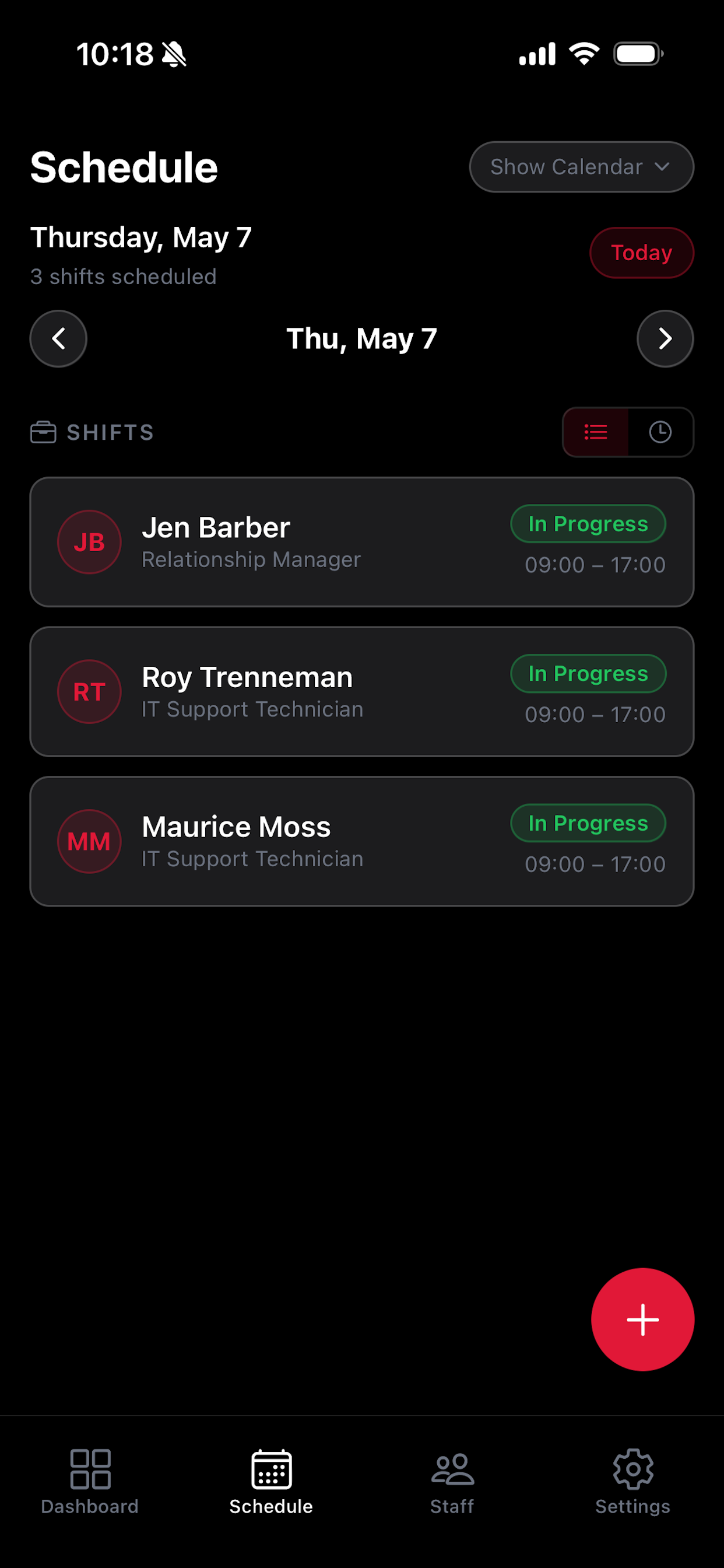
Your upcoming shifts are displayed in chronological order, starting with the next scheduled shift at the top.
Filter Your Shifts
Tap the filter icon or date range selector at the top of the shifts list.
Choose from the preset date ranges: 1 Week, 1 Month, 1 Year, or All to adjust the time window shown.
The shift list updates instantly to show only shifts within your chosen range.
View Shift Details
Tap any shift in the list to open its detail view.
The detail view shows your role, start and end time, any location your manager added, and any shift notes.
From the detail view, you can also request coverage for the shift if you need it covered. See the Requesting Time Off guide for details.