The Schedule tab gives you a complete real-time view of your team's week. Add shifts, assign employees, set recurring patterns, and manage your roster all from one place — updates are visible to staff instantly.
Open the Schedule
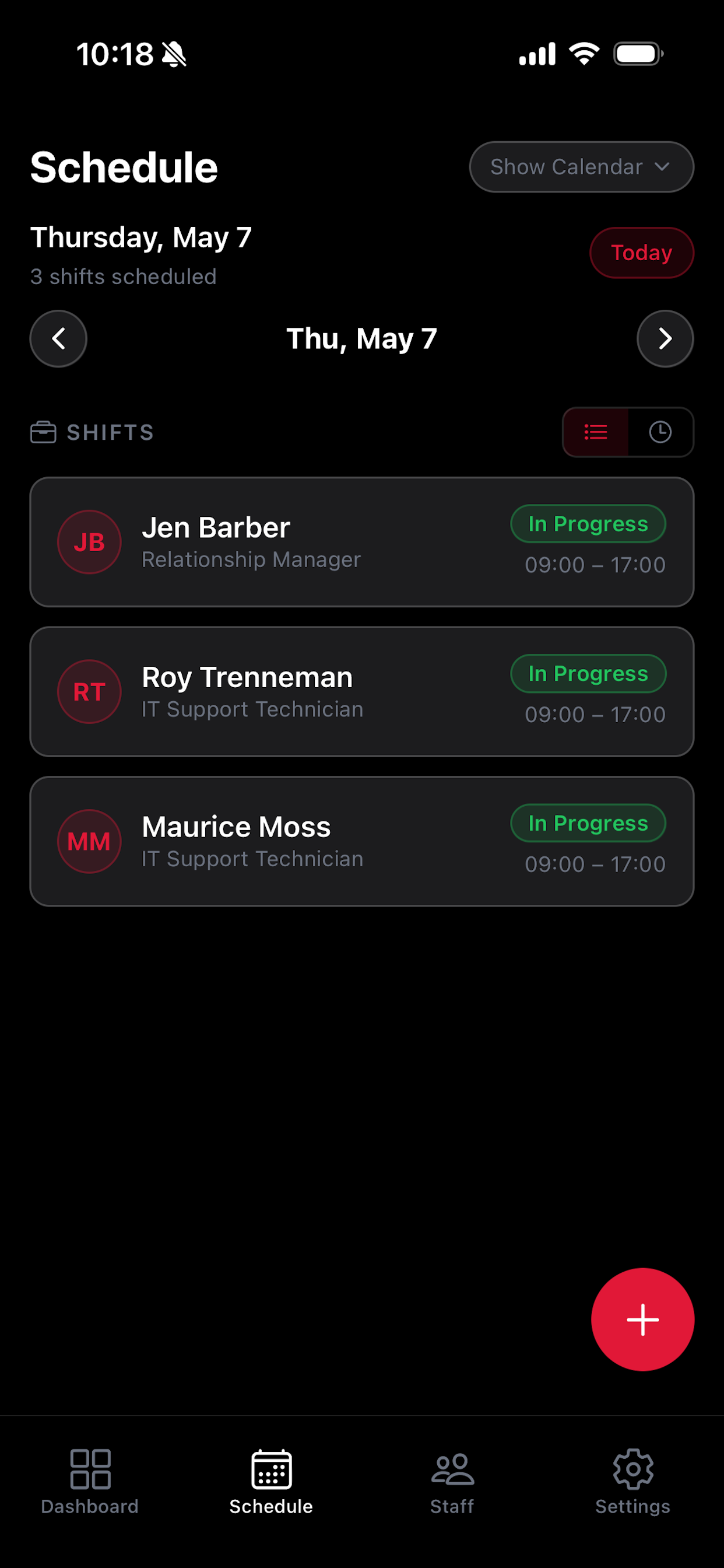
Tap the Schedule tab at the bottom of the screen.
The calendar view shows all current shifts for your team, color-coded by employee or role.
Add a Shift
Tap the + button to open the Add Shift form.
Select the employee to assign the shift to from your staff list.
Choose a role or position for the shift (e.g., Server, Cashier, Supervisor).
Set the start and end time for the shift.
Optionally add shift notes — for example, the work location, specific tasks, or dress code requirements.
Tap Save. The shift appears on your schedule view and on the employee's My Shifts tab instantly.
Create Recurring Shifts
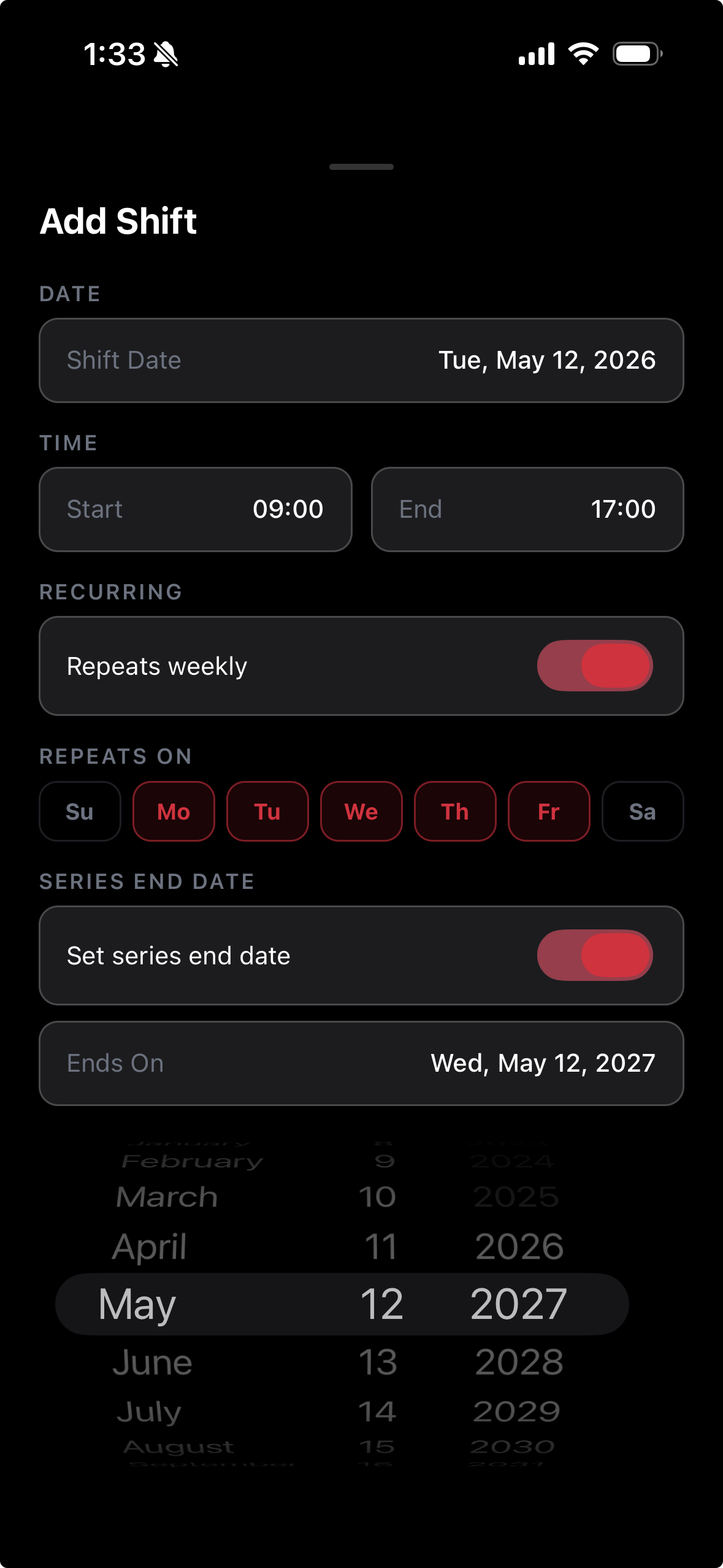
When adding a shift, enable the Recurring toggle.
Choose the day(s) of the week to repeat the shift on.
The shift will automatically repeat each week until you cancel or edit it.
Edit or Delete a Shift
Tap any shift on the schedule to open its detail view.
Tap Edit to modify the shift's details — employee, role, time, or notes.
Tap Delete to remove the shift entirely. Use shift notes to communicate any important changes to employees.